 Docker Registry App
About
Docker Registry is used for storing and distributing Docker and OCI images using the OCI Distribution Specification.
- Questions? Ask in the Cloudron Forum - Docker Registry
- Docker Registry docs
- Docker Registry issue tracker
User Management
Cloudron Directory
When Cloudron user management is enabled, simply use the Cloudron username and password to login.
$ docker login registry.cloudron.space
Username: girish
Password:
Login Succeeded
Then, you can push images like so:
$ docker push registry.cloudron.space/hello-world
Using default tag: latest
The push refers to repository [registry.cloudron.space/hello-world]
e07ee1baac5f: Pushed
latest: digest: sha256:f54a58bc1aac5ea1a25d796ae155dc228b3f0e11d046ae276b39c4bf2f13d8c4 size: 525
Without Cloudron Directory
When Cloudron user management is disabled, the registry is setup with no authentication. The main use case for this is to have the registry authenticate with an external provider such as GitLab instead of Cloudron. See the GitLab section below on how to set this up.
GitLab Integration
The following steps can be used to setup GitLab container registry.
- Create a volume named
registry-shared. - Attach volume name
registry-sharedto both GitLab and Docker Registry apps. Be sure to uncheck theRead Onlycheckbox. - Create folders
containersandcertson the host filesystem inside the path that is assigned to theregistry-sharedvolume. - Run the following commands inside the certs folder:
openssl req -nodes -newkey rsa:2048 -keyout registry-auth.key -out registry-auth.csr -subj "/CN=gitlab-issuer"
openssl x509 -in registry-auth.csr -out registry-auth.crt -req -signkey registry-auth.key -days 365000
chmod 777 registry-auth.key registry-auth.crt registry-auth.csr
- Modify the permissions from
roottocloudroninside the Docker Registry app for the created folders and files.
chown -R cloudron:cloudron /media/registry-shared/
- Modify
/app/data/config.ymlof the Docker Registry app using the File manager by altering or adding the auth part to resemble the following:
auth:
  token:
    realm: https://<GITLAB_HOST>/jwt/auth
    service: container_registry
    issuer: gitlab-issuer
    rootcertbundle: /media/registry-shared/certs/registry-auth.crt
Change the 'rootdirectory' value inside the same config file to:
/media/registry-shared/containers
Save the file and restart the app.
- Modify
/app/data/gitlab.ymlof the GitLab app by adding the following lines (some of them might already be there, so skip them):
production:
  <<: *base

  registry:
    enabled: true
    host: <DOCKER_REGISTRY_HOST>
    port: 443
    api_url: https://<DOCKER_REGISTRY_HOST>
    key: /media/registry-shared/certs/registry-auth.key
    path: /media/registry-shared/containers
    issuer: gitlab-issuer
Save the file and restart the app.
For Gitlab pipelines use the $CI_REGISTRY_PASSWORD and $CI_REGISTRY_USER for authentification with the registry.
Delete Tag
To delete a tag, use the delete button in the UI.
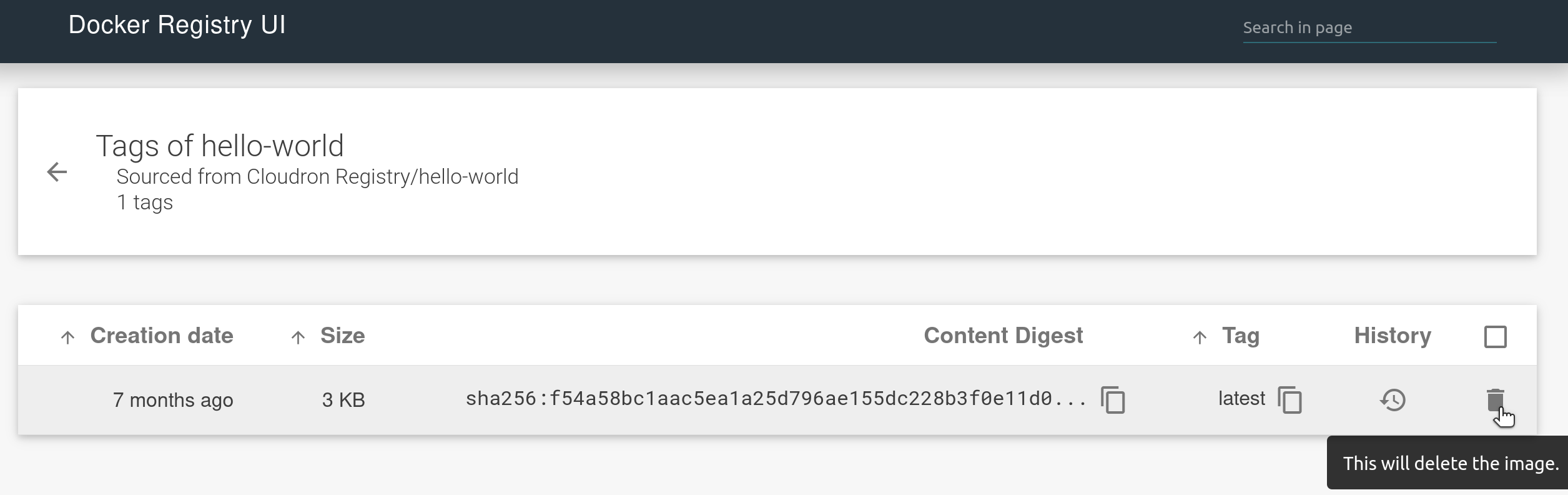
While the tag gets deleted immediately, the image blobs are not. The app is configured to run the Garbage collector every day to remove dangling blobs. To remove them immediately, open the Web Terminal and run:
/usr/local/bin/gosu cloudron:cloudron /app/code/registry garbage-collect /app/data/config.yml
Delete Repository
All repositories are stored in the /app/data/storage/docker/registry/v2/repositories/ folder.
Do not delete repositories directly from that folder. The manifests do not get deleted and the repository becomes inconsistent. Instead, use the web UI to delete all the tags.
Alternately, you can use the /app/code/registry-client CLI tool. The image blobs are not deleted
from disk immediately. The app is configured -to run the Garbage collector
every day to remove dangling blobs. To remove them immediately, open the Web Terminal and run:
/usr/local/bin/gosu cloudron:cloudron /app/code/registry garbage-collect /app/data/config.yml
Delete Images
To enable deletion of images via the UI, enable the storage.delete.enabled setting in /app/data/config.yml using the File manager. After enabling it, restart the app and you should see a button in the UI to delete images.
Custom UI configuration
Docker Registry UI has many customizable settings. They can be set in /app/data/registry-ui.sh using the File manager.
Be sure to restart the app after making any changes.